

1
Profiles & Credentials
Select saved profiles, keep credentials organized, and manage customer locations from the left control area.
Stop wasting your team's valuable time on repetitive Portal downloads. UiPrime automates the heavy lifting—saving you time and money, and freeing your best resources to focus on high-impact, productive work.
Live Automation Run
It is your ultimate automation builder. UiPrime goes beyond basic tasks, giving you a secure, easy-to-use platform to build custom automated solutions. Connect your systems, centralize your data, and eliminate manual repetition across your entire enterprise.
Automate repetitive business processes and reduce manual effort across daily operations.
Runs independently once configured—no manual follow-ups, repetitive clicks, or constant supervision.
Execute workflows, generate reports, and process data around the clock without interruption.
Reclaim the hours lost to manual, mind-numbing tasks. Whether you need to streamline standard daily operations or design entirely new custom workflows, UiPrime handles the heavy lifting so you don't have to.
Configure your varied system integrations, locations, credential profiles, and custom task assignments once, and let the workspace seamlessly manage the rest.
Go beyond basic RPA. Execute predefined batches or use the upcoming builder to design and run your own custom workflows to handle tasks across multiple platforms automatically.
Say goodbye to manual formatting. UiPrime automatically processes multi-source data, applying your custom logic, templates, and formulas to create polished, ready-to-use files.
Shift daily operations to timed execution. Schedule your custom workflows and reports to run once, daily, weekly, or monthly, complete with snooze, skip, and auto-start capabilities.
Never guess if an automated process finished. Track the success rates of all your custom and standard runs with visual dashboard charts, an in-app activity timeline, and daily log files.
Adapts to your specific security and organizational requirements through server-driven entitlements, scaling exactly to what your expanding business needs, far beyond a single industry.
UiPrime keeps setup, execution, Excel output, scheduling, and run health visible in one workspace, so teams can move from configuration to status review without switching tools.
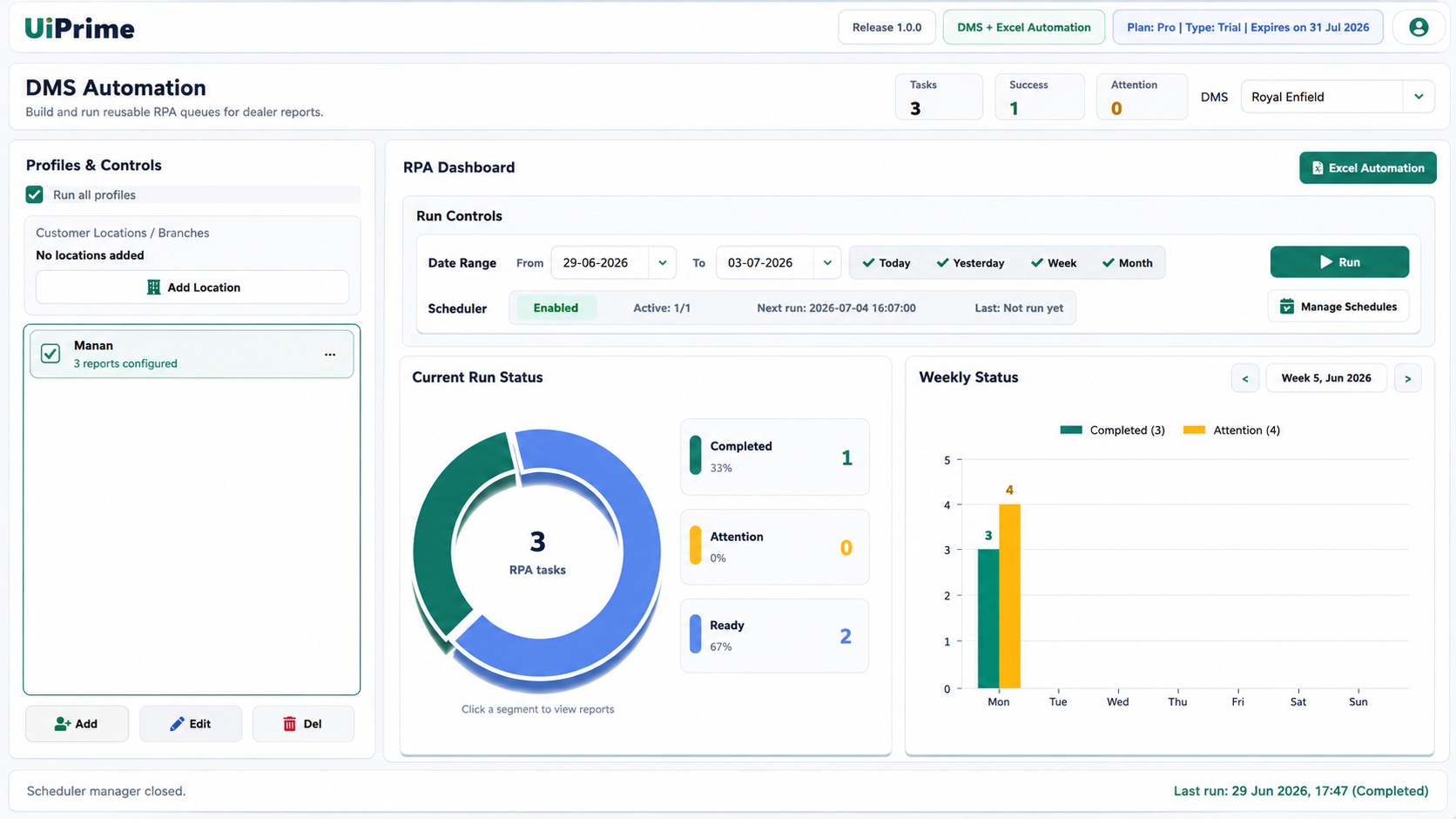
Select saved profiles, keep credentials organized, and manage customer locations from the left control area.
Create new profile configurations, update existing setup, or remove outdated entries from the same dashboard.
See the active DMS, release, plan type, expiry, task count, success count, and attention count at the top.
Choose date range presets, confirm scheduler readiness, and run selected automation batches on demand.
Open Excel Automation for output work, or manage saved schedules for timed execution.
Review completed, ready, and attention items in a visual status chart after each run.
Track completed work and attention items across the week to understand run health quickly.
Use the bottom status line to confirm the latest automation time and completion state.
UiPrime works like a connected workspace: setup details feed the run, the run creates usable output, and the dashboard keeps the team clear on every result.
Systems, profiles, reports
Files, dashboard, logs
Choose source systems, profiles, reports, locations, and folders once.
UiPrime follows the saved run plan and handles repetitive portal or file work.

Templates, filters, formulas, and folders turn raw data into usable files.
Dashboard, activity logs, and scheduler status show what needs attention.
UiPrime is designed as one customer-facing desktop app with controlled licensing, local setup data, and server-managed system availability.
Trial, activation, release, and force-logout flows keep access tied to the licensed user and machine.
Available system options are controlled centrally, so teams only see the automation workflows enabled for them.
Profiles, report mapping, schedules, and paths stay app-adjacent for easier customer support and setup review.
Dashboard and report status views help operators spot completed, pending, and attention-needed work quickly.
Stop losing hours to manual login repetition and tedious location-wise exports. Let's set up your automated workspace today.
Quick answers about UiPrime, automation capabilities, and implementation.
UiPrime is built for businesses that rely on ERP systems, web portals, Excel reports, and repetitive operational processes.
Yes, you can configure multiple locations and credential profiles once, and the RPA engine will run specific report batches across all of them automatically.
No. Most automations can be configured without programming, and advanced workflows can be built using the visual workflow builder.
Yes. UiPrime uses secure encryption and controlled access to help protect your workflows, credentials, and business data.
No. Your business data remains under your control, and UiPrime only accesses the information needed to perform the automations you configure.
UiPrime stores all files locally on your computer in dedicated folders for easy access and management.
%LOCALAPPDATA%\UiPrime\savefiles
%LOCALAPPDATA%\UiPrime\Output
%LOCALAPPDATA%\UiPrime\Templates
These folders are created automatically during installation and can be accessed anytime through Windows File Explorer.